Before you start
- iPhone: new, or erased to factory settings. Move to iOS does not run on a configured iPhone.
- Android: above 50% battery, updated Google Play Services.
- Both phones on power, ideally, and within a metre of each other for the whole transfer.
- Your Apple Account ready. If you are buying more iCloud storage, do it before setup, not after.
The steps
- Start iPhone setup and stop at the "Apps & Data" screen. Choose Move Data from Android.
- Install Move to iOS on the Android phone from Google Play, then open it and accept the terms.
- Enter the twelve-digit code shown on the iPhone. This is the step people get wrong: the code expires, and the connection drops if you take too long or background the app.
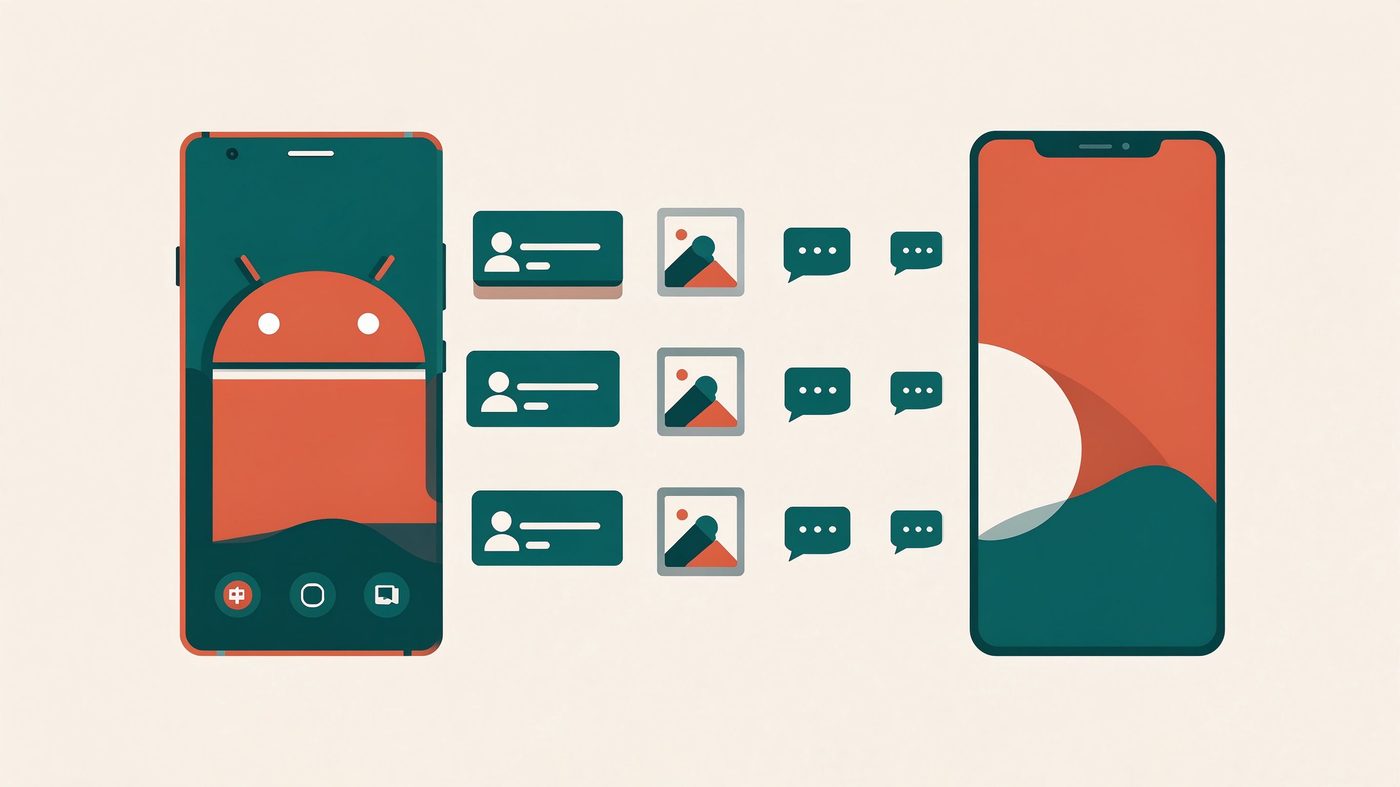
- Choose what to transfer. You will see contacts, message history, camera photos and videos, mail accounts, calendars, bookmarks and apps. Removing a category before starting is easier than cleaning up afterwards.
- Wait. A full 64 GB phone takes 45–90 minutes. The progress bar stalls around 90% while photos are re-encoded — that is normal.
- Finish setup on the iPhone. Apps then download in the background, in the order Apple decides.
What actually arrives
| Arrives | Does not arrive |
|---|---|
| Contacts and contact photos | Call logs |
| SMS and MMS history (as a block, not threads) | App data and game saves |
| Camera roll photos and videos | Files in app folders and downloads |
| Mail accounts (Google, Exchange) | Non-App-Store apps |
| Calendars, Safari bookmarks | WhatsApp chats (use WhatsApp's own transfer) |
| Free apps, reinstalled from the App Store | Paid apps, unless re-purchased |
Three things to do immediately after
- Merge the message threads. Imported SMS appear as individual messages, not conversations. iOS will not merge them; you live with it or archive them.
- Check your two-factor apps. Authenticator apps that were tied to the Android device need re-enrolment. Do it while the Android phone still has the accounts.
- Keep the Android phone alive and offline for a week. It is the only source for anything that did not come across.
If it fails
"Unable to connect" — disable any VPN, and avoid networks with client isolation (hotel, office guest Wi-Fi). Move to a home network or use a hotspot.
Stuck downloading apps — the transfer already finished; app downloads are a separate background job. Check the App Store queue rather than restarting setup.
Wrong Apple Account — you cannot switch mid-transfer. Erase the iPhone and start again; do it before you invest an hour of transfer time.
It stopped at 95% and the iPhone rebooted — check whether photos arrived. If they did, the transfer succeeded and the counter was wrong. If not, erase and retry with a wired connection: a Lightning/USB-C to Ethernet adapter is the most reliable fix for flaky Wi-Fi.